 Srpski

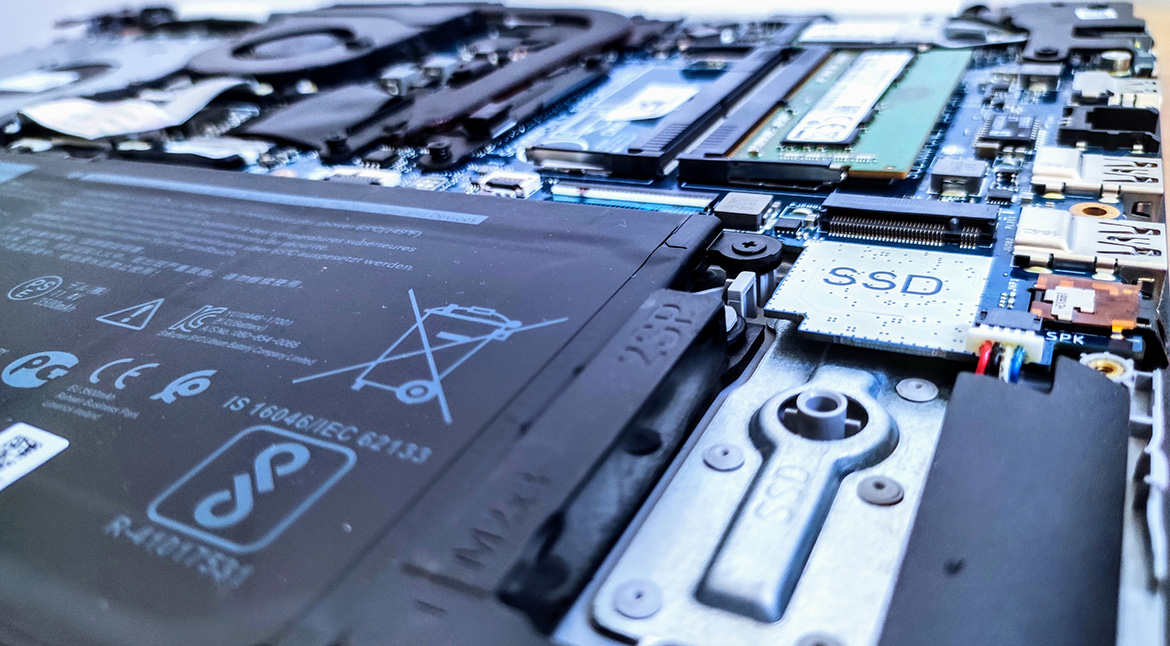
The speed of a laptop depends mostly on the drive installed in it, so installing an NVMe or SSD drive in Novi Sad as the system drive dramatically improves performance. For example, on our test laptop Windows 10 booted in about 79 seconds with a hard drive, and in only 17 seconds with an SSD.
NVMe or SATA SSD – which one fits your computer?
- NVMe drives are the latest generation, with very high read and write speeds. They are installed in M.2 slots, found on newer laptops up to a few years old.
- SATA SSD – on older laptops without an M.2 slot, the SSD is installed in place of the standard hard drive or instead of the CD/DVD drive.
- Desktop computers – an NVMe drive is installed, or a classic SATA SSD if there is no M.2 slot.
What does SSD or NVMe installation include?
- Choosing the right drive for your laptop or desktop
- Physical installation of the drive
- Installation of a new operating system (Windows 11 Pro or Windows 10 Pro) or cloning of your existing system to the new drive
After installing an SSD or NVMe drive, a new operating system has to be installed or the existing one cloned.
When is an SSD worth it?
- The computer takes a long time to start and opens programs slowly
- The laptop is a few years old but otherwise works fine
- You want a speed-up without buying a new computer
If the computer also overheats, see laptop cleaning and thermal paste replacement.
Frequently asked questions
Will my laptop support an SSD?
Almost every laptop can take an SSD – in the M.2 slot or in place of the old hard drive. We check the model before installing.
Will I lose my data?
Not necessarily. We can clone your existing system to the new drive, or back up your data and install a clean system.
Do you install SSDs in desktop computers too?
Yes, NVMe or SATA SSD, depending on the motherboard.
Book an SSD installation
Call or email us with the model of your laptop or computer, and we will tell you which drive is the best choice.